Download Microsoft Edge – Fast Secure Browser for Windows, Mac, Android & iOS
Overview
Microsoft Edge has evolved from its early Internet Explorer roots into a modern, Chromium‑based web browser that rivals the most popular tools on the market. Designed by Microsoft, Edge offers a free‑to‑use, secure, and high‑performance browsing experience across Windows, macOS, Android, and iOS devices. The latest versions leverage the same Blink rendering engine as Google Chrome, meaning pages load in a flash and extensions from the Chrome Web Store work natively.
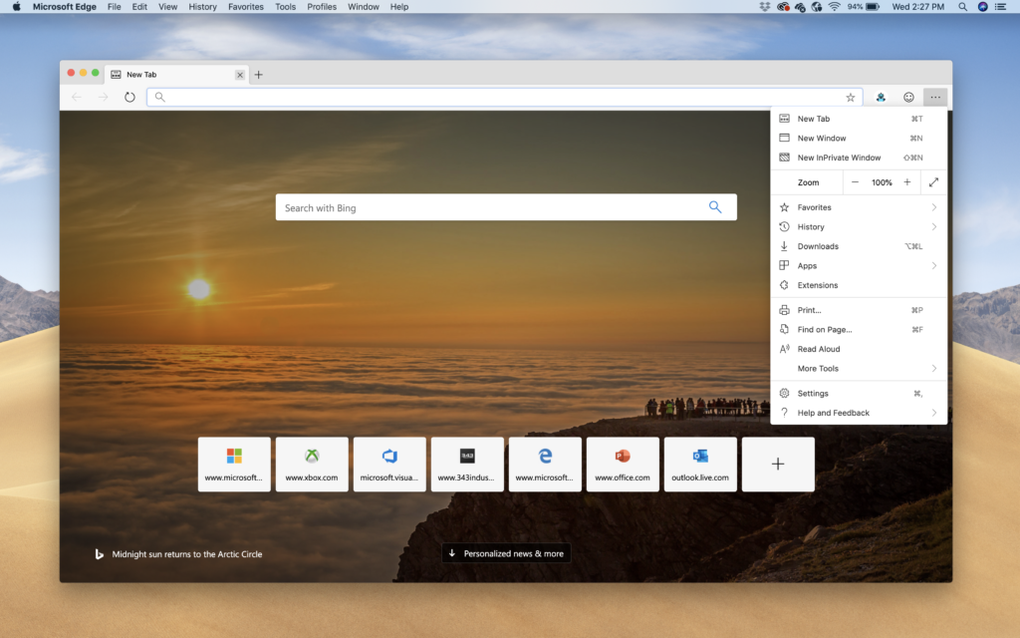
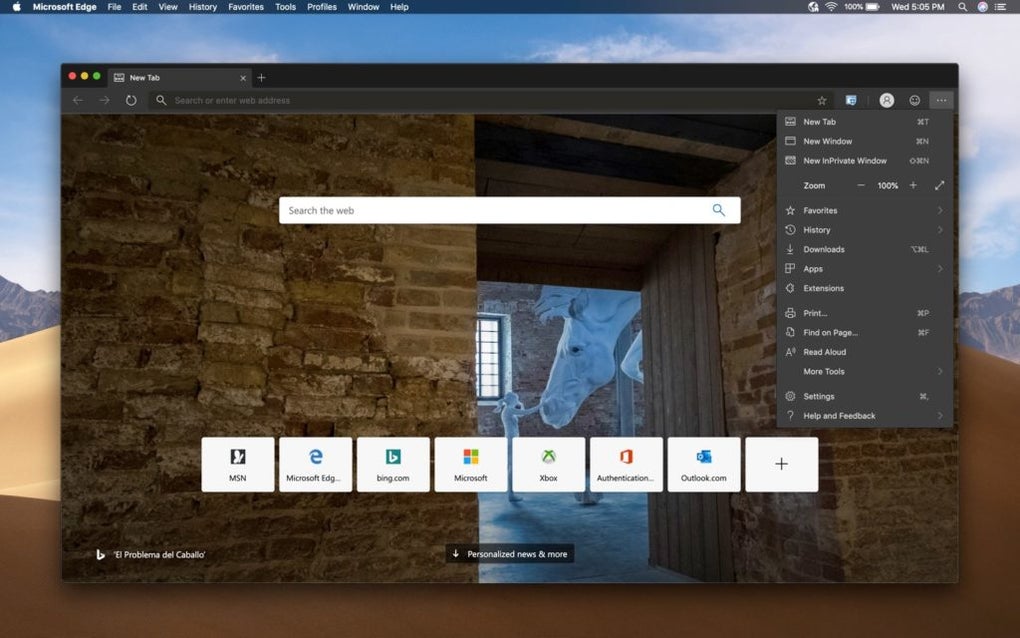
Edge’s interface is intentionally minimalist: a clean address bar, spacious new‑tab page, and well‑spaced icons make navigation feel intuitive, whether you’re a power user or a casual surfer. Integrated tightly with Microsoft 365, Edge lets you pull documents, spreadsheets, and collaboration tools directly into the browser without switching apps. The built‑in “SmartScreen” filter blocks phishing sites and malicious downloads, while customizable privacy levels—Basic, Balanced, and Strict—give you granular control over tracking and data collection.
For Mac users, Edge respects the Touch Bar layout, and its recent redesign adds a sleek, modular aesthetic that blends seamlessly with macOS’s native look. Whether you need to open dozens of tabs for research, sync bookmarks across devices, or enjoy AI‑driven assistance via Microsoft Copilot, Edge provides a reliable foundation that balances speed, security, and productivity. In short, it’s a solid, cross‑platform alternative that keeps the web fast, private, and accessible.
Core Features
- Chromium‑based engine for lightning‑fast page rendering.
- Deep integration with Microsoft 365 and OneDrive sync.
- Built‑in “SmartScreen” and “SmartScreen Defender” for malware protection.
- Three privacy tiers – Strict, Balanced, Basic – for customized tracking control.
- Support for Chrome Web Store extensions and Microsoft Edge Add‑ons.
- Vertical and horizontal tab groups, “Collections” for research organization.
- AI‑powered Microsoft Copilot sidebar for summarization, content generation, and workflow automation.
- Customizable new‑tab layouts: Focused, Informational, Inspirational, or fully Manual.
- Cross‑device sync of favorites, passwords, and settings via your Microsoft account.
- Touch Bar compatibility on macOS and native support for Android & iOS gestures.
The feature set of Microsoft Edge is intentionally built around both everyday browsing and professional workflows. Because Edge runs on Chromium, developers can use the same debugging tools they’re familiar with from Chrome, while end‑users benefit from a vast ecosystem of extensions—ranging from ad blockers to productivity boosters. Edge’s “Collections” feature acts like a digital clipboard, allowing you to clip text, images, and links into a single, shareable package—perfect for research projects or travel planning.
The new AI Copilot integration, currently rolling out to Insider builds, brings a conversational assistant directly into the sidebar, letting you ask for on‑page summaries, draft emails, or generate code snippets without leaving the browser. Security remains a top priority; SmartScreen checks every site you visit against a constantly updated threat database, and the integrated password manager alerts you when credentials have been compromised. Finally, Edge’s ability to sync settings across Windows, macOS, Android, and iOS means you can pick up exactly where you left off, no matter the device.
Installation & First‑Time Usage
Getting started with Microsoft Edge is straightforward and requires only a few clicks. For Windows 10/11 users, Edge is pre‑installed; however, you can download the latest version from the official Microsoft site to ensure you have the newest security patches. macOS users should visit the Microsoft Edge download page, select the macOS installer (.pkg), and follow the on‑screen prompts—Edge will automatically place itself in the Applications folder and add an icon to the Dock for easy access. Android and iOS users can locate Edge in the Google Play Store or Apple App Store, respectively, and install it like any other app.
After installation, launch Edge and sign in with your Microsoft account to enable cross‑device sync. The first‑time setup wizard will ask you to choose a default privacy level; most users start with “Balanced,” which blocks major trackers while still allowing personalized content. You’ll also be prompted to import bookmarks, passwords, and history from other browsers (Chrome, Firefox, Safari).
This import process is optional but highly recommended if you’re switching from another tool. Once the import is complete, explore the “Collections” button on the toolbar—click it to create a new collection, then drag and drop web content into the pane. To enable Copilot, click the sidebar icon (a small robot) and follow the sign‑in flow; you’ll soon see AI suggestions appear based on the page you’re viewing.
Navigation shortcuts are built into Edge for power users: Ctrl+T (or ⌘+T on Mac) opens a new tab, Ctrl+Shift+N launches an InPrivate window, and Alt+F opens the main menu. You can pin frequently used sites by right‑clicking a tab and selecting “Pin.” The “Settings” menu (three dots → Settings) lets you fine‑tune appearance, privacy, and default search engine preferences. Finally, remember to regularly check the “Updates” section under Settings → About Microsoft Edge to keep the browser patched against emerging threats. With these steps completed, you’re ready to browse the web securely, quickly, and with AI‑enhanced assistance.
Compatibility & System Requirements
Microsoft Edge is engineered to run smoothly on a broad range of operating systems and hardware configurations. For desktop environments, the supported platforms include:
- Windows 10 (version 1809 or later) and Windows 11 – 64‑bit recommended.
- macOS 10.15 (Catalina) and later – native Apple Silicon (M1/M2) and Intel builds.
- Linux distributions with glibc 2.17+ – Debian, Ubuntu, Fedora, openSUSE, and others via .deb or .rpm packages.
Mobile compatibility covers the two dominant ecosystems:
- Android 7.0 (Nougat) and newer – available through the Google Play Store.
- iOS 13.0 and later – distributed via the Apple App Store, optimized for iPhone and iPad.
Edge’s performance scales with your device’s CPU, RAM, and graphics capabilities. On low‑end hardware, the browser automatically limits background processes to conserve resources, while on high‑end machines it utilizes hardware acceleration for smoother video playback and faster page rendering. Edge also respects platform‑specific UI conventions: on macOS it supports the Touch Bar, while on Windows it integrates with the Action Center for notification handling. For enterprise environments, Edge offers group policy controls, Microsoft Endpoint Manager support, and compatibility with Windows Defender Application Control. In summary, whether you’re on a powerful workstation, a modest laptop, or a smartphone, Edge delivers a consistent, secure browsing experience that adapts to the capabilities of your device.
Pros & Cons
Pros
- Fast Chromium engine ensures quick page loads and smooth performance.
- Deep integration with Microsoft 365 and OneDrive for seamless productivity.
- Robust security suite with SmartScreen, tracking protection, and built‑in password manager.
- Extensive extension support via Chrome Web Store and Edge Add‑ons.
- AI‑powered Copilot sidebar adds contextual assistance and automation.
- Cross‑platform sync of bookmarks, passwords, and settings.
- Customizable new‑tab layouts and Collections for organized research.
- Free to download and use with no hidden subscription fees.
Cons
- Occasional memory usage spikes when many extensions are active.
- Some legacy corporate sites may still rely on Internet Explorer mode.
- Feature parity with Chrome can lag in niche extensions.
- Mac version receives updates slightly later than the Windows build.
- Advanced privacy settings may be overwhelming for non‑technical users.
Frequently Asked Questions
Is Microsoft Edge free to download and use?
Yes, Microsoft Edge is completely free. You can download it from Microsoft’s official website or your device’s app store without any subscription or hidden fees.
How does Edge’s security compare to other browsers?
Edge incorporates Microsoft’s SmartScreen technology, which blocks phishing sites and malicious downloads. It also offers three privacy levels, a built‑in password manager, and frequent security patches, putting it on par with Chrome and Firefox in terms of protection.
Can I sync my bookmarks and passwords across devices?
Absolutely. By signing in with a Microsoft account, Edge syncs favorites, passwords, browsing history, and even open tabs across Windows, macOS, Android, and iOS devices.
What is Microsoft Copilot and how does it work in Edge?
Copilot is an AI‑powered assistant built into Edge’s sidebar. It can summarize articles, generate email drafts, extract data from tables, and provide contextual answers based on the content of the current web page, all powered by Microsoft’s large language model.
Does Edge support Chrome extensions?
Yes. Because Edge runs on the Chromium engine, you can install extensions directly from the Chrome Web Store as well as from Microsoft’s own Edge Add‑ons catalog.
Conclusion & Call to Action
Microsoft Edge has matured into a powerful, secure, and AI‑enhanced browser that meets the needs of today’s internet users. Its Chromium foundation guarantees speed and compatibility, while Microsoft‑specific features—such as deep integration with Office 365, Collections, and the upcoming Copilot assistant—provide a productivity edge that few competitors can match. The browser’s free price tag, cross‑platform availability, and robust privacy controls make it an excellent choice for both personal and enterprise environments. If you’re looking for a modern, reliable, and feature‑rich browser that keeps your data safe and your workflow smooth, give Microsoft Edge a try today. Click the download button below to install the latest version and start enjoying a faster, safer web experience.







